

|
ATS > Software > Geographic Information Systems > Constructing and Sharing Maps |
|
|
|
||
|
||||
ArcMap is an easy-to-use program to display map data, symbolize it in useful ways, and output it to common, shareable file formats.
The aim of this tutorial is to guide you through constructing, coloring, and saving a simple map using ArcMap, the primary component of ArcGIS, using prepared data. In the process of doing this, you will become familiar with some of the menus and procedures you would use to create maps using your own resources. Getting the Tutorial DataSince this tutorial will be using specific maps and data, the first step is to make your own copy of the tutorial data. First go to the network drive The
Note that many of these files have the same root name, e.g. states; this means that they must all stay together to work properly. There is also a folder of additional exercises. Beginning with ArcMapProcedure 1: Initializing ArcMap
The main ArcMap window is divided into two panes:
The larger pane on the right is the map display area. You can display geographic data here by adding it with the yellow-and-black button Procedure 2: Adding Data to ArcMap
A map of the United States including Alaska and Hawaii should now appear in the map display pane. Data such as states that are displayable geographically are called layers, because they overlay each other like transparencies when you add them. Maps can display several different kinds of layers: points, lines, polygons, images, and others. The layer states consists of polygons defining the boundaries of the fifty states. Each of these polygons is called a feature of the layer.
The layer's name will also be listed in the pane on the left, which is called the Table of Contents. By default its name is the data file's root name, but it can be easily changed by cllcking on it and typing. Experiment: Change the name of the layer The Table of Contents provides three views of your data. The primary view is Display, which shows just the simple names of data layers. The secondary view is Source, which lists the full path names of your data files. In addition to data layers, it also shows data you've referenced that is undisplayable, such as tables of additional data. Usually you'll want to stay in the Display view. The third view, Selection, is a topic for another day. Experiment: Click on the tabs Display and Source to observe how the view of your data changes. ArcMap DocumentsBefore we proceed any further, it's a really good idea to save your map. ArcMap documents preserve your current arrangement for use at a later time, and are especially useful after the occasional ArcMap crash. You'll therefore want to continue to save them on a regular basis, for example every time you're satisfied with the current view. Procedure 3: Saving A Map Document
ArcMap documents do not actually contain the data you add to them, such as the layer Because ArcMap documents only contain links to your data, another good practice is to make those links relative to the map document. For example, the data might be referenced as being "in the same folder as me" rather than being "in the folder C:\Documents and Settings\username\Desktop\makingmaps". Either of these is known as a path to the data; the former is called relative while the latter is called absolute. Relative paths will facilitate moving the folder containing your map file along with all the files linked to it to another location. Procedure 4: Storing Relative Pathnames in a Map Document
Note that you can only open ArcMap documents by double-clicking on them in the Windows Explorer, or by opening them from within The Tools ToolbarThe primary toolbar is called Tools, and it contains the buttons listed below. They provide quick ways to zoom in and out, pan across the map, restore a map to its full extent, and return to previous views of the map:
The toolbar is shown above docked between the two window panes, but may be located in some other position when you open ArcMap for the first time. Experiment: Locate the toolbar and drag it into position between the two panes (unless you prefer it somewhere else). Experiment: Try zooming in and out of the map, panning, and using the full extent button to return to the original map view. Also try using the back and forward buttons to move along the sequence of views you've created. We'll talk about the other tools later. Map ScalesThe degree to which one has zoomed in to or zoomed out from the map is commonly expressed by comparing a distance on the map to the same distance in the real world. So, for example, the distance from New York to Los Angeles is about 6 centimeters in the computer view above, but roughly 4,000 kilometers in real life. Since 6 cm = 0.00006 Km, we can calculate a ratio of these two numbers that doesn't depend on units, 0.00006 Km : 4,000 Km = 1 : 70,000,000. This ratio describes what one map unit corresponds to in the real world, and is called the map scale. ArcMap displays the map scale in a text field at the top of the screen just to the right of the button Experiment: Observe how the map scale changes as you zoom in and out of the map. Try changing the scale by typing a number in its text box, and by choosing a value from the menu. Note that as you decrease the second number in the map scale ratio, the scale increases. At a large scale a map will appear bigger on the screen (it will be "zoomed in"), and you will see more detail. However, there will be a smaller area visible within the window.
|
|
Checklist for Coloring states random colors
|
Right-click the states layer, select Properties and then the Symbology tab. Select Quantities on the left.
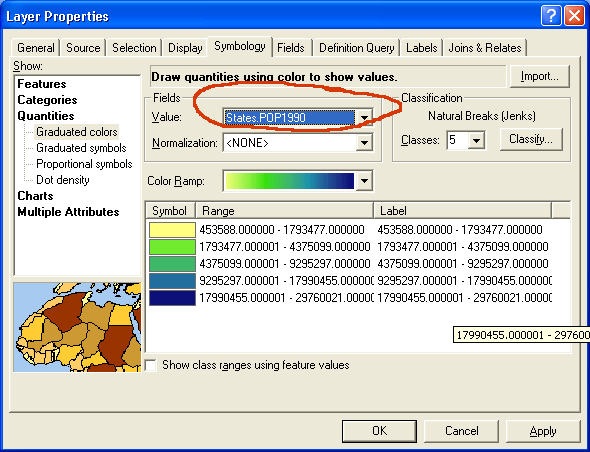
Coloring a map using a quantitative variable is more complicated than coloring it using random different colors. There are three basic choices to make. You need to select a color scheme from the ones provided. You need to decide how many value classes you want to use. Finally, you need to decide what method you will use to classify the values. ArcMap provides several ways to do this automatically, as well as the option of letting you set the break points between categories manually.
Begin by selecting the field for coloring the map as the Value in the Fields frame. Then select the Color Ramp scheme from the set of color schemes provided.
ArcMap will by default use five categories and the natural breaks method for dividing the values into five categories. The natural breaks method tries to draw the lines between categories of values where they naturally break. If you want more categories, you can easily change the number. Usually between five and eight categories works reasonably well. If you use too many categories, the color values may be difficult to distinguish.
To use a different method of classifying values, click the Classify button over on the right side of the screen.
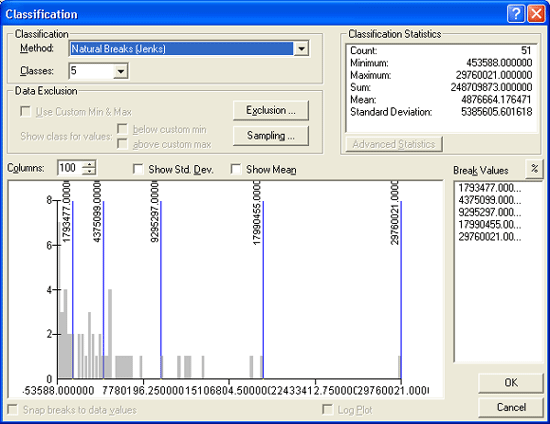
The quantile method creates categories with near-equal numbers of features in each. If we use it to create five categories of states and there are 51 states (50 states and the District of Columbia), we will get categories that each contain ten or eleven states. The equal-interval method divides the values into categories whose value ranges are the same. Choose one of these methods and click OK on this screen and then on the Layer Properties screen. The map will be colored--or symbolized according to the choices you made.
|
Checklist for coloring a map using a quantitative field
|
In many cases, instead of coloring a map with a simple demographic field such as "population 1990" or "people over 80," you may want to use the ratio of a field like this to another field, typically either a total field--for proportion of the total population over 80--or an area field--for population density. This is done by specifying that field as the Normalization field
Both the classification method and normalizing your data can make major changes in the way your map looks and in the way it is interpreted by someone who neglects to read the legend. It's important to make these choices based on an understanding of the data.
One of the most powerful features of ArcGIS is the ability to display multiple map layers at once, much like a set of transparencies allows different views to be displayed together in many combinations. To see how this works, we'll add more and different types of data to your map.
 ArcMap, in the toolbar Standard, click on the button
  Add Data.
 makingmaps.
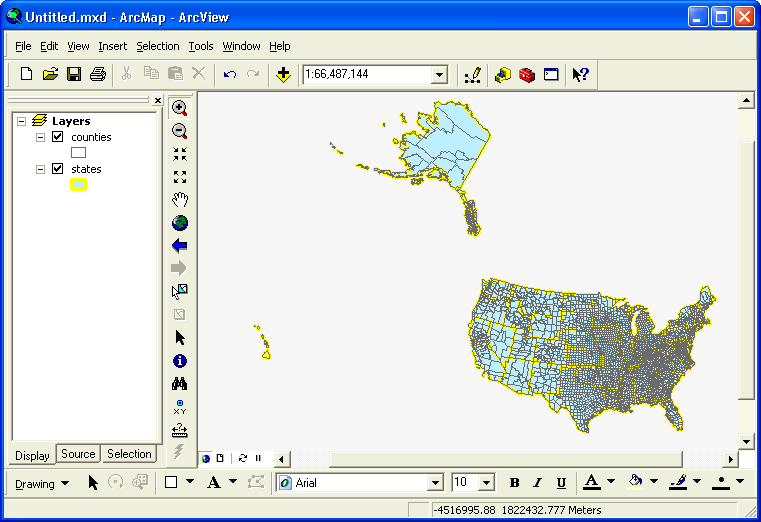
 counties.shp. This layer will be placed in front of the states layer, since it was added later. states layer more visible, we'll turn off the fill color of the counties layer. states layer, this time to make its boundaries more visible:
Your map should now look something like the following:
Next we'll add a different type of data, a set of points:
ArcMap, in the toolbar Standard, click on the button Add Data. makingmaps. cities.shp shows points, indicating the type of data to be displayed. Click on cities.shp, and click the button Add. Now many points appear on the map, indicating the different cities in the layer. By default, a point layer will automatically be placed in front of a polygon layer on the map.
 Identify to learn more about specific cities. You may need to zoom in to spatially distinguish some cities. cities, you'll see the same symbol being used to represent the layer on the map. Click on the symbol to open the dialog Symbol Selector, and try out the available options.
The previous step only allows you to select a uniform symbology for the points in a point layer. Like polygons, it's also possible to vary the symbol based on values in the layer's attribute table, but in several unique ways such as changing the symbol size.
 Procedure 8: Symbolizing a Point Layer Using Proportional Symbols ArcMap, in the Table of Contents, double-click on the layer's name, e.g. cities.
 Layer Properties, click the tab Symbology.

Finally, we'll add a raster image representing elevation:
ArcMap, in the toolbar Standard, click on the button Add Data.
exercises, and then down into the folder elevation. Note how the icon for the file  elevation shows a grid of pixels, indicating the type of data to be displayed.
elevation by clicking once on its icon and then clicking the button OK. (If you click twice you may be given the option to only add one color band, which you don't want to do right now.) By default, an image layer will be placed behind a polygon layer, so initially you may not be able to see this layer because it is covered up by the states layer.
states layer to bring up the dialog Layer Properties, and then click the tab Display. In the field Transparent: %, type 70.
elevation shows a grid of pixels, indicating the type of data to be displayed.
elevation by clicking once on its icon and then clicking the button OK. (If you click twice you may be given the option to only add one color band, which you don't want to do right now.) By default, an image layer will be placed behind a polygon layer, so initially you may not be able to see this layer because it is covered up by the states layer.
states layer to bring up the dialog Layer Properties, and then click the tab Display. In the field Transparent: %, type 70.
 . Double-click on the layer elevation to bring up the dialog Layer Properties, click on the tab Symbology, and try out different color ramps.
As seen above, a point layer will automatically be placed in front of a polygon layer on the map, since it is less obscuring. Similarly, a raster layer will be placed behind a polygon layer, because it is generally more obscuring (polygons might be hollow outlines, for example). The layer ordering is represented in the Table of Contents by a covering layer's name being higher up the list. If you want to change the layer order on the map, you can do so by clicking on a layer's name and dragging it to a different position.
Question: Where do you think line data would be positioned?
You may have noticed the checkboxes to the left of the layer's name; they are used to turn their display on  and off
  .
.
Experiment: Observe how the display changes as you turn the various layers off and on by clicking on their checkboxes.
There are a number of ways to search for and select different parts of a layer's data. We'll try one of them, and then create a new layer from it.
From the Selection main menu pick Select by Attribute.
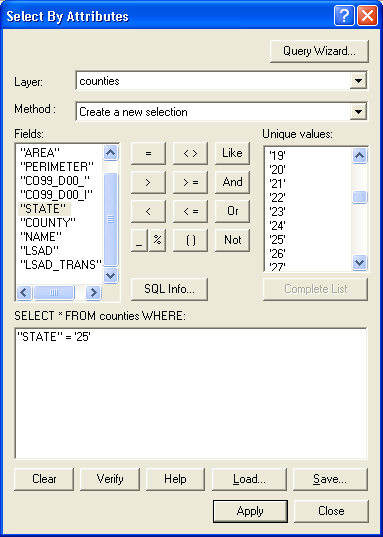
In the Select by Attributes screen, the Layer should be the counties layer and the Method should be Create a new Selection. Locate the STATE field in the box on the left and double-click it so that it appears in the box on the bottom of the screen. Click the = sign once so it appears following STATE. Click the Complete List button below the box on the right. Now double-click 25 in that box on the right--this is the state FIPS code for Massachusetts. Click Apply and then Close. The state of Massachusetts should now be highlighted on the map. (While you could have used the Select Features button on the Tools toolbar to make this selection, using the Select by Attributes menu offers other options.)
Right-click the counties layer, click on Selection and then Create Layer from Selected Features. A new layer will appear at the top of the Layers list. Click off the other layers. Now the map displays just the counties in Massachusetts. Click twice slowly on the layer name and change the name to Massachusetts. Right-click on this Massachusetts layer that you just created and select Save as Layer File. You now have a map layer you can use if you have county data for the state of Massachusetts. Note that it is a just a reference to the original counties.shp map, but it also stores any changes you make to it such as different symbols, etc. This map is in the form of a layer file (*.lyr).
|
Checklist for creating a layer from a selection
|
If you want to actually save your selection as a separate set of data that could be used with another map, right-click on the counties layer, click on Data and then Export Data.... In the field Output shapefile or feature class:, click on the button  Browse and navigate to the folder makingmaps. Change the text Export_Output.shp to counties_select.shp, and click on the button Save. Then click the button OK, and when you are asked if you want to add the exported data to the map, click the button Yes. A new layer will appear at the top of the Layers list.
The ArcGIS software is not available to most people, so its documents are not easily sharable. Luckily, there are a number of different ways to save sharable maps depending on the purpose you have in mind. You can print on paper, create an image, create a PDF, or export it to the free applications Google Earth or ArcReader.
When you publish your map to static formats such as paper, digital images, or PDF, you'll need to define a size for the output, which you can think of simply as the paper size. Menu File > Page and Print Setup..., and proceed in the usual way to choose Printer, Paper Size, Paper Orientation, etc.
To see how your map will look on the printed page, go to the View menu and select Layout View.
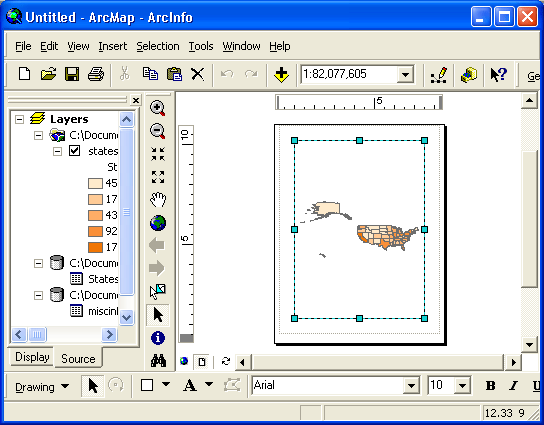
This displays the map to fit inside the margins of the paper type chosen. You can change the margins by clicking on them and dragging one of the blue boxes to a new position. Note the thin gray dotted line; it shows the actual limits to printing on the paper size for the printer you've chosen.
The map as displayed in the margins is the same one you've chosen in the data view, no matter how big or small the margins are. You can use the same tools in the toolbar Tools to change the relative size and position of the map within those margins. Important: in the Layout View, you should have access to the toolbar Layout, which provides similar tools that reference the paper rather than the map — with them you can zoom into the paper without changing the size of the map relative to the paper.
Before sharing your map, it's a good cartographic practice to add a title, a legend to describe the different layers, a north arrow to show directions, and a scale bar to show the map scale:
If necessary, resize the margins around the map to fit these new additions.
The most basic way to share maps is to save them in one of the file formats commonly found on the Internet.
Go to the menu File and choose the menu item Export Map.... Then navigate to the folder in which you want to save the map.
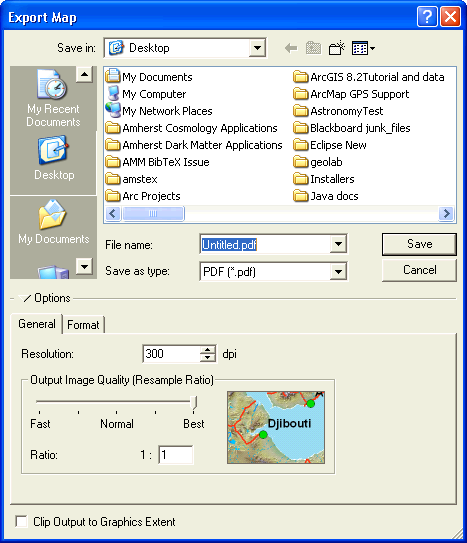
If your intent is to use the map on a computer, such as in a web page or a PowerPoint presentation, where printing is a secondary consideration:
JPEG as the format; it will provide lossy but excellent compression.
PNG, which produces good compressed files from vector graphics (it also does a reasonable job on raster graphics).
Choose an image resolution of about 100 dots per inch (dpi), good for display on most computers.
If your intent is to use the map in a paper or a poster that will be printed, for example with Microsoft Word or Adobe InDesign, you will want to save it in an image format that preserves lots of detail; TIFF works well. Choose a resolution of at least 300 dpi.
If you would like the map to be a stand-alone document, then the Acrobat format PDF is a good choice. These files can be easily displayed by most people with the Adobe Reader software, and it's readily downloaded by web browsers. PDF will preserve more of the details of the map, and so it's a good way to distribute it if it will later be printed. A PDF map even provides some degree of interactivity, e.g. turning layers on and off. Important: make sure you click on the tab Format and then choose the checkbox Embed All Document Fonts; this will help keep the document readable by everyone.
Experiment: Try producing all three of these file formats, and compare them. In the PDF document, note the tab on the left called Layers; click on it and then click on the "eye" icon next to one of your layers, and observe what happens.
The free application Google Earth has become very popular, as it provides a few popular sets of data in an easy-to-access format — if you have an internet connection. You can view images of the Earth's surface (taken from airplanes or satellites), roads, and even buildings in 3D!
ArcGIS is a useful tool to create additional layers that can be viewed in Google Earth, together with its predefined ones.
Google Earth uses a map format known as KML, which is sometimes compressed to a smaller size using ZIP compression to produce a KMZ file. A free extension is available for ArcMap called Export to KML that will create this format with your layers. Unfortunately, you can only export one layer at a time rather than an entire map.
ArcMap, turn on the toolbar  Export to KML by menuing View > Toolbars > Export to KML. The toolbar is very short, displaying only the Google Earth icon .
Export to KML.
Export to Google Earth KML, in the menu Select the layer to export:, choose a layer.
Export to KML by menuing View > Toolbars > Export to KML. The toolbar is very short, displaying only the Google Earth icon .
Export to KML.
Export to Google Earth KML, in the menu Select the layer to export:, choose a layer.
This procedure will produce a KML file; within Google Earth you can right-click on the layer and save it as a KMZ file, which will be much smaller.
It is also possible to create an interactive map that allows the viewer of the map to explore it by zooming and viewing attributes, very similar to what you have been doing already with ArcMap. This is somewhat more complicated and described in a separate section on using ArcPublisher.
If you are interested in applying what you've learned to some slightly different kinds of maps, here are some exercises. They use map files in the exercises subfolder.
 K:
K: C:
C: Start
Start Course-related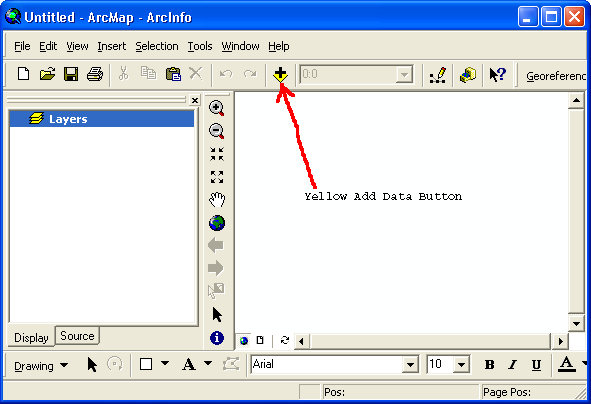
 Connect to Folder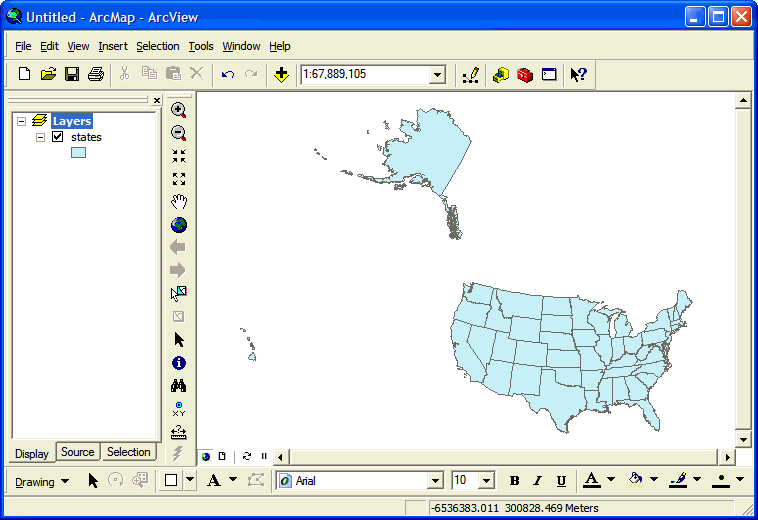
 Save
Save


 and choosing from a list of common values.
 Open Attribute Table
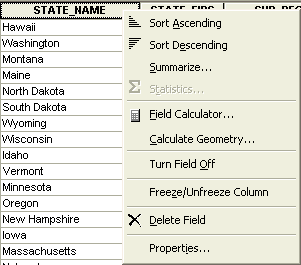 Sorting Map Features
 Sort Ascending
 Sort Descending
 Select Record